Guide
Turn a Stripe payment into a PDF invoice and email it
| customer_name | payment_description | +4 more |
|---|---|---|
| Maya Okafor | Design retainer, November | … |
PDFops builds the invoice
/api/invoice, once per payment. Done by the Zapier template and the n8n workflow below.
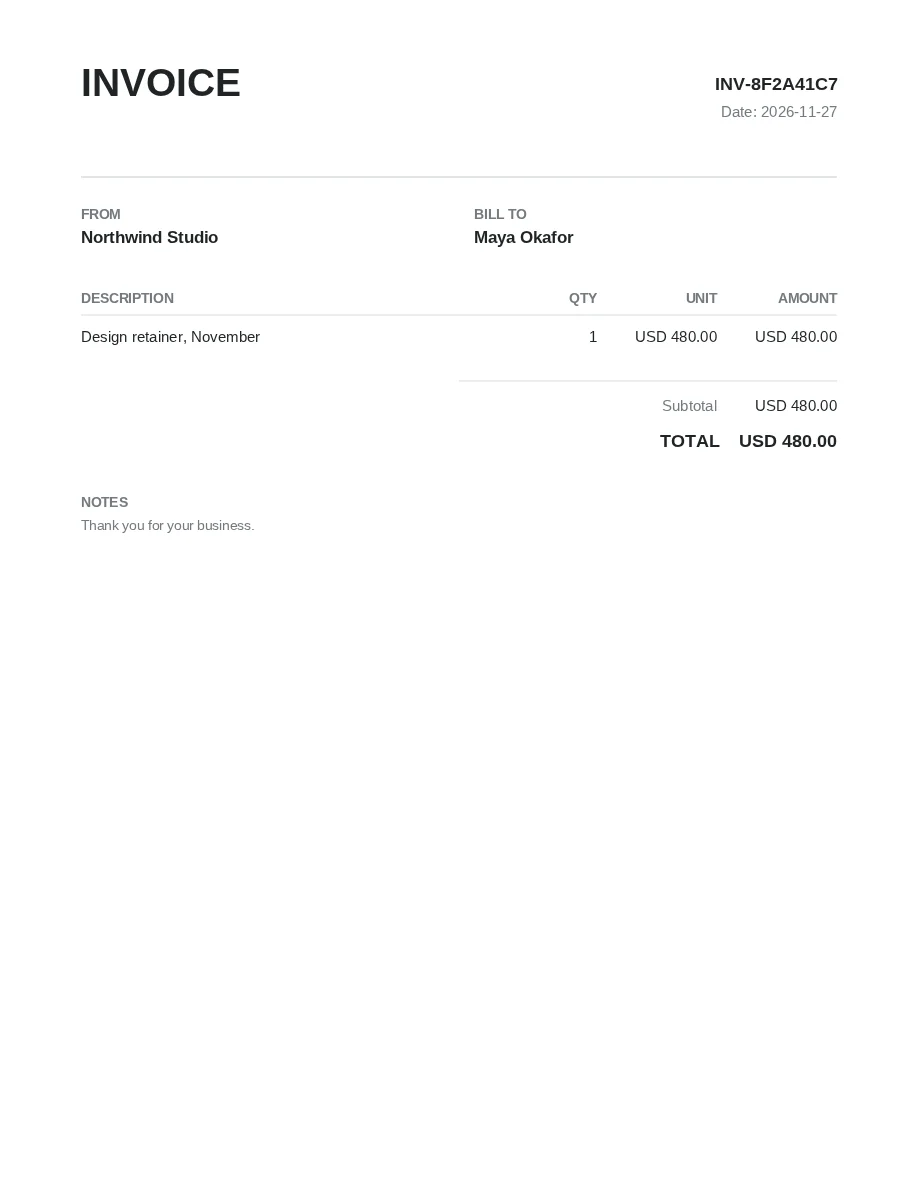
Stripe sends a receipt, but a business often wants its own invoice: its name on it, an invoice number, the right currency and a PDF to keep. PDFops draws a complete invoice from structured data with no template to prepare, so a payment's details can become the invoice directly. This page shows the two templates that already exist, the field mapping, and the input mistakes that stop a first run.
What you get
Each successful Stripe payment becomes one PDF invoice, built from the payment's details and ready to email to the customer. See a sample invoice PDF.
Set it up
- Check what the payment gives you. In Zapier open the trigger's test data, and find the customer's name, the amount, the currency and the payment date. In n8n the real shape appears when you make a test payment in the test step below, so read the Payment Succeeded output then, before you trust anything. Three things can stop the invoice or make it wrong: the customer's name can be empty, the date must be written YYYY-MM-DD, and the amount must be in the major unit of the currency (480 or 10.99), not the smallest unit such as 1099. Stripe's own API and the n8n Stripe trigger report the smallest unit. On 2026-11-20 we read Zapier's Stripe trigger sample, and its Amount arrived as a decimal (10.99), not cents. The Zapier action sends the unit price exactly as it receives it and cannot divide, so a cents value there would give an invoice 100 times too large with no error.
- Fill the fields the invoice endpoint needs. The invoice endpoint needs a non-empty To name, a From name, at least one line item with a description and a unit price, and an invoice date written YYYY-MM-DD if you send one: called directly, it refuses an empty name and any other date form, a Unix timestamp such as 1764201600 included. In n8n the workflow does all of this itself: the Build Invoice Payload node converts the amount, falls back from the customer's name to their email address, then the receipt email, then the word Customer, and writes the date as YYYY-MM-DD. In Zapier, make sure the name field you map to To (name) is never empty, for example a field that always holds a value such as the customer's email address when the test data has one, give Invoice date as YYYY-MM-DD or leave it empty, and type From once.
- Know how the n8n workflow converts the amount. In n8n the Build Invoice Payload node divides Stripe's amount by 1 for a built-in list of 15 zero-decimal currencies (JPY, KRW and 13 others), by 1,000 for five three-decimal ones (BHD, JOD, KWD, OMR, TND) and by 100 for every other currency. A currency in neither list would be treated as two-decimal, so check the first invoice of any unusual currency.
- Get a free key and connect PDFops. Create a free API key, then paste it into the PDFops connection in Zapier or the PDFops credential in n8n.
- Set your own details in Set Invoice Defaults. The n8n workflow ships with another company's placeholders, and a run with them would email customers invoices from Your Company Inc. Open Set Invoice Defaults before the first run and set every field: companyName (the sender name printed on each invoice), invoicePrefix (the start of each invoice number, INV by default), taxRate (a percentage, 0 by default), defaultLineItem (the line description used when a payment has none, Payment received by default), invoiceNotes (the note printed on the invoice), s3Bucket (the bucket the PDF is archived to) and minimumAmount (in the smallest currency unit: 500 means 5.00; payments below it are skipped). In the Zapier template type your own sender name in From once.
- Test with your own address, and leave it off. Open the Gmail step in Zapier, or the Email Invoice to Customer node in n8n, and put your own address in its To field before you run anything: testing sends a real email, and a switched-on automation emails the customer of every real payment. In n8n keep the workflow inactive, so the Payment Succeeded trigger never fires on its own. Select a separate test-mode Stripe credential on Payment Succeeded and Fetch Stripe Customer (editing a shared credential would switch every other workflow that uses it to test mode), point Set Invoice Defaults at a scratch s3Bucket, give Check Ledger for Event and Log to Invoice Ledger a scratch ledger, and point Alert Billing Channel (default channel #billing) at a scratch channel, since a run also writes a file, a ledger row and a Slack message. Then start the workflow's test run so Payment Succeeded listens, and make a payment in Stripe test mode while it listens: the run starts when the event arrives. Give the test payment an email address: Has Customer Email? reads the payment's own email, so a payment with none goes to Slack and the email step is never tested. Stripe has to be able to reach your n8n, so a self-hosted instance behind a router or firewall needs a tunnel or a public URL. In Zapier, run the test on the trigger's sample payment. Open the PDF it makes. Set an n8n error workflow too: if Check Ledger for Event fails, the run stops with no invoice and no Slack message.
- Compare the test invoice's total with the Stripe charge. Before you turn anything on, open the test invoice and compare it with the Stripe payment it was made from: the total, to the cent and in the same currency, and the sender name, which must be yours and not Your Company Inc. If the invoice is off by a factor of 100, the amount reached the invoice step in the wrong unit: fix the mapping, do not turn it on.
- Put the live settings back, then turn it on. In Zapier put the Gmail step's To back to what it held before you changed it, the customer's email from the Stripe step. In n8n put Email Invoice to Customer, field To (sendTo), back to the expression {{ $('Build Invoice Payload').item.json.customerEmail }}; select the live Stripe credential again on Payment Succeeded and Fetch Stripe Customer; set s3Bucket in Set Invoice Defaults back to your real bucket; point Check Ledger for Event and Log to Invoice Ledger back at the real ledger sheet; and set Alert Billing Channel back to your real channel (#billing by default). Then turn the Zap on, or activate the workflow.
Payment field to invoice field mapping
Each payment becomes one POST call to /api/invoice (endpoint reference). In Zapier you choose the payment field for each invoice field once, in the PDFops step; after that every new payment fills the same fields. In n8n the workflow's Build Invoice Payload node reads the payment itself, so there is nothing to map by hand. It divides the amount by the right number for the currency, uses the customer's name or, when there is none, their email address, then the receipt email, then the word Customer, and writes the payment date as YYYY-MM-DD. The invoice layout is fixed, so there is no template PDF to prepare.
| Payment detail | Invoice field | Example value |
|---|---|---|
customer_name | to | Maya Okafor |
payment_description | items.description | Design retainer, November |
amount | items.unit_price | 480 |
currency | currency | USD |
payment_date | date | 2026-11-27 |
payment_id | invoice_number | INV-8F2A41C7 |
| typed once in the PDFops step | from | Northwind Studio |
| typed once in the PDFops step | items.quantity | 1 |
| typed once in the PDFops step | notes | Thank you for your business. |
Templates
Zapier
Open the template in Zapier: Create PDFops invoice PDFs for new Stripe payments and send them with Gmail. It is also on its listing page.
Steps: Stripe (New Payment), then PDFops (Create Invoice PDF), then Gmail (Send Email).
Before you run it. Once the Zap is on, the Gmail step emails the customer of every new payment in the connected Stripe account, and testing the Gmail step sends a real email. Before you test, note what To holds in the Gmail step, then put your own address there; put the original back before you turn the Zap on. Leave the Zap off until the invoice's total matches the Stripe charge. The template maps the payment's amount into the line item's unit price, but which Stripe field it uses is only visible inside Zapier, so check that the field is a decimal amount and not a cents field, and check which field feeds To (name) in the PDFops step: a payment made without a customer name has no value there.
Needs a paid plan. Three steps (trigger, PDFops, Gmail). Zapier's Free plan allows two-step Zaps only (zapier.com/pricing.md, read 2026-11-27). A trigger plus the PDFops step alone would run on Free but would deliver the invoice nowhere.
Get a free PDFops key for Zapier
n8n
Open the template on n8n: Generate Stripe invoice PDFs with PDFops, S3, Gmail, Sheets, and Slack. Or download the workflow JSON and import it. It uses the n8n-nodes-pdfops community node.
Steps: Stripe (Payment Succeeded), then Google Sheets (Check the ledger for this event's id), then Stripe (Fetch the customer), then PDFops (Generate Invoice), then AWS S3 (Archive the PDF), then Gmail (Email the invoice to the customer), then Google Sheets (Log the invoice to the ledger), then Slack (Alert when a step fails).
Before you run it. Set every field in Set Invoice Defaults first: it ships with the placeholder company name Your Company Inc. Once the workflow is active it invoices, emails and logs every successful payment the Stripe credential can see. Keep it inactive while you test, so Payment Succeeded never fires on its own. Select a separate test-mode Stripe credential on the nodes that use Stripe, Payment Succeeded and Fetch Stripe Customer; do not edit a shared credential, because every other workflow using it would switch to test mode too. Open Email Invoice to Customer and put your own address in its To field, point Set Invoice Defaults at a scratch s3Bucket, and give the two Google Sheets nodes (Check Ledger for Event and Log to Invoice Ledger) a scratch ledger copy. A run also uploads the PDF, writes a ledger row and posts to Slack through Alert Billing Channel, whose channel is #billing by default: point it at a scratch channel too. If Check Ledger for Event fails, the run stops with no invoice and no Slack message, because that node has no error branch: set an n8n error workflow.
Can run without a paid plan. n8n has no free Cloud plan (n8n.io/pricing, read 2026-11-27). The workflow runs without a licence fee on self-hosted Community Edition with the n8n-nodes-pdfops community node installed, and with a free PDFops key.
Frequently asked
What happens when a payment has no customer name?
The n8n workflow falls back to the customer's email address, then the receipt email, then the word Customer, so the invoice is still made. In Zapier make sure the field you map to To (name) is never empty: an invoice needs a name, and a run with no value for it does not produce one. Map it from a field that is always filled, such as the email address, when the test data has one.
Why does the invoice date matter?
The invoice endpoint accepts a date written YYYY-MM-DD. The n8n workflow converts the payment's Unix timestamp itself. In Zapier give Invoice date as YYYY-MM-DD, or leave it empty.
Which amounts and currencies work?
The invoice takes the unit price in the major unit of the currency, with a three-letter currency code. In n8n the Build Invoice Payload node divides Stripe's smallest-unit amount correctly for the 15 zero-decimal and five three-decimal currencies it lists, and treats every other currency as two-decimal. In Zapier nothing divides the amount, so the field you map must already be a decimal; on 2026-11-20 Zapier's Stripe trigger sample showed Amount as 10.99. Whatever the platform, compare a test invoice's total with the Stripe charge before you turn anything on.
Does the ledger stop a payment being invoiced twice?
Only once the ledger row exists. In n8n, Check Ledger for Event skips an event whose id is already in the ledger sheet, but the row is written after the S3 upload succeeds, and the email goes out on a parallel branch. A redelivery that arrives before the row is written, or after an upload that failed, is invoiced and emailed again. If reading the ledger itself fails, Check Ledger for Event stops the run with no invoice and no Slack message, so set an n8n error workflow.
Can the invoice show tax?
Yes. The endpoint takes a tax rate as a percentage and works out the tax from the line items. The n8n workflow has a tax rate in Set Invoice Defaults, set to 0. Leave it at 0 if the invoice total must equal the amount charged to the cent, because the net amount that would add back to a given total does not always exist in two decimals.
Do these templates run on free plans?
The Zapier template has three steps, and Zapier's Free plan allows two-step Zaps, so it needs a paid Zapier plan. The n8n workflow runs on a self-hosted n8n, which has no licence fee, because n8n Cloud has no free plan. It also needs accounts for Stripe, AWS, Gmail, Google Sheets and Slack. A PDFops key itself is free.
Does the invoice carry a PDFops footer?
Invoices made with a free key, or with no key, carry a one-line footer saying Generated with pdfops.dev. Paid keys get clean output.
Try it
Get a free API key, then open a template above. You can also build a sample invoice in the free invoice generator first.
← PDFops home · Zapier guide · n8n guide · Free key · Pricing