Guide
Merge every PDF in a Google Drive folder into one file
| Position | File name |
|---|---|
| 1 | 01-harbour-supplies-invoice.pdf |
| 2 | 02-maple-couriers-invoice.pdf |
| 3 | 03-north-print-invoice.pdf |
PDFops merges the files
/api/merge, once per run. Done by the n8n workflow below.
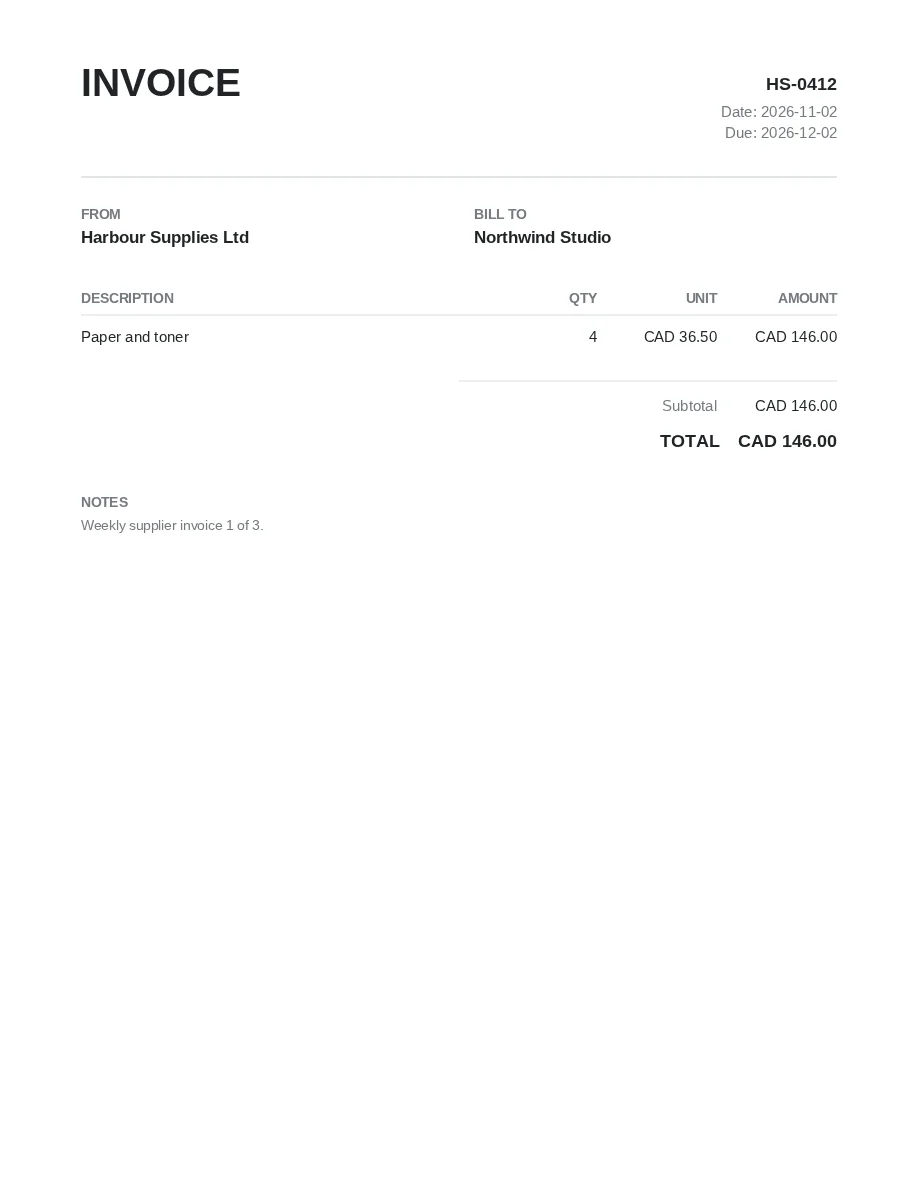
Weekly receipts, signed forms and report pages tend to pile up in a shared Drive folder, and Drive does not merge PDFs by itself. PDFops merges two or more PDFs into one, so a workflow can list the folder, fetch each file and join them. This page offers one n8n workflow as a download, the page order it produces, and the limits to plan around.
What you get
Every week, all the PDFs in one Google Drive folder are joined into a single file in file-name order, saved to a second folder and emailed as one attachment. See a merged sample PDF.
Set it up
- Name the files in the order you want. The workflow sorts the PDFs by file name before it merges them, so the first name sorts first. Prefix the names with 01-, 02-, 03- to control the order. Only PDFs directly inside the folder count; files in sub-folders are not read.
- Plan for the limits. One merge takes 2 to 20 PDFs, each under 4 MB, up to 2,000 pages in all, and the whole request must stay under 4.5 MB. With fewer than 2 or more than 20 PDFs the workflow emails a notice instead of merging.
- Get a free key and connect PDFops. Create a free API key, then paste it into the PDFops credential on the Merge All PDFs node in n8n. Install the n8n-nodes-pdfops community node first.
- Set an error workflow. The workflow emails a notice when the folder holds fewer than 2 or more than 20 PDFs, and when Merge All PDFs, Save Merged PDF to Drive or Email Merged PDF fails. It sends no notice when List PDFs in Folder, Filter Prior Outputs, Sort by File Name or Download PDF fails, for example on a wrong folder URL or an expired Drive login: the run just stops. Choose an error workflow in the workflow's settings in n8n so those failures reach you. The notice is sent through the same Gmail credential as the merged PDF, so if Gmail itself is down or its login has expired, no notice can be sent either.
- Test on scratch folders, and leave it inactive. Open the Set Merge Options node. Put your own address in recipient, point folderUrl at a scratch folder with two or three test PDFs, and set outputFolderId to a different, empty scratch folder. The workflow saves each merged file to that folder and skips any file whose name starts with the outputPrefix, merged-, so a merged file is never merged into the next one. Run the workflow once by hand from the editor, and keep it inactive, so the Every Monday trigger never fires on its own, until the result is right.
- Check the order in the merged PDF. Open the merged PDF from your inbox or the scratch output folder and check that the pages follow the file names: the pages of the first file first, then the second, and so on.
- Put the real folders back, then activate. In Set Merge Options put recipient, folderUrl and outputFolderId back to your real address, source folder and output folder. Then activate the workflow: from then on it runs every Monday at 08:00 and emails the recipient.
Files in, one file out
The files go in one POST call to /api/merge (endpoint reference), and the pages come back in the order the files were sent. The n8n workflow sorts the files by name before it merges them, so prefix names with 01-, 02-, 03- to choose the order.
| File in the folder | Position in the merged PDF |
|---|---|
01-harbour-supplies-invoice.pdf | 1 |
02-maple-couriers-invoice.pdf | 2 |
03-north-print-invoice.pdf | 3 |
Workflow
n8n
Download the n8n workflow JSON: Merge every PDF in a Google Drive folder into one file and email it. It is not in n8n's template gallery, so import the file into your own n8n. It uses the n8n-nodes-pdfops community node.
Steps: Schedule (Every Monday), then Google Drive (List the PDFs in the folder, drop earlier bundles, check there are 2 to 20), then Google Drive (Download each PDF in file-name order), then PDFops (Merge All PDFs), then Google Drive (Save the merged PDF to a separate folder), then Gmail (Email the merged PDF, or a notice when something fails).
Before you run it. Every Monday at 08:00 (in your n8n's time zone) the Every Monday trigger starts the workflow, which emails the merged PDF to the address in the recipient field of Set Merge Options. Before the first run put your own address in recipient, point folderUrl at a scratch folder holding two or three test PDFs, and set outputFolderId to a different, empty scratch folder. Run it once by hand from the editor, and keep the workflow inactive until the result is right. It sends a notice to the same address only when the folder holds fewer than 2 PDFs or more than 20, or when Merge All PDFs, Save Merged PDF to Drive or Email Merged PDF fails. It sends no notice when List PDFs in Folder, Filter Prior Outputs, Sort by File Name or Download PDF fails, for example on a wrong folder URL or an expired Drive login: those stop the run silently, so set an n8n error workflow for them. The notice goes out through the same Gmail credential as the merged PDF, so an expired Gmail login sends nothing at all.
Can run without a paid plan. n8n has no free Cloud plan (n8n.io/pricing, read 2026-11-27). The workflow runs without a licence fee on self-hosted Community Edition with the n8n-nodes-pdfops community node installed, and with a free PDFops key.
Frequently asked
Is this workflow in the n8n template gallery?
No. It is a downloadable workflow file on this page, not a gallery template, so there is no n8n gallery page for it. Download the JSON and import it into your own n8n.
Does it run on a schedule or when a file arrives?
On a schedule: every Monday at 08:00 in your n8n's time zone. It merges whatever PDFs are in the folder at that moment. You can change the schedule in the Every Monday node.
Which failures send me a notice?
A notice goes to the recipient when the folder holds fewer than 2 PDFs (after earlier merged- files are ignored) or more than 20, and when Merge All PDFs, Save Merged PDF to Drive or Email Merged PDF fails. No notice is sent when List PDFs in Folder, Filter Prior Outputs, Sort by File Name or Download PDF fails: the run stops with no message. Set an error workflow in n8n to hear about those. The notice uses the same Gmail credential as the merged PDF, so an expired Gmail login sends nothing.
What stops one week's merged file being merged into the next?
The workflow saves the merged PDF to a separate output folder and also ignores any file whose name starts with the outputPrefix in Set Merge Options, merged- by default. Keep outputName starting with that prefix.
How many files and how large?
Two to twenty PDFs per merge, each under 4 MB, 2,000 pages at most in total, and under 4.5 MB for the whole request. A larger set needs splitting into several folders and several merges.
Can I merge PDFs in a different order or from several folders?
The order is file-name order, so rename the files. The workflow reads one folder; to merge from several, import it once per folder with a different folderUrl.
Does it run on a free plan?
n8n has no free Cloud plan. The workflow runs on a self-hosted n8n, which has no licence fee, with the n8n-nodes-pdfops community node and a free PDFops key. It also needs Google Drive and Gmail accounts.
Try it
Get a free API key, then open a workflow above. You can also test your own PDF in the playground first.